
Your account can now ask for a code from your phone after the password, and your portal can ask its people for a code sent by e-mail. It takes a minute to turn on.
A password can be guessed, reused on another site, or stolen. From today QuintaDB can ask for a second proof when someone signs in: a code that only the person's phone or mailbox has. A stolen password alone is no longer enough.
In the menu under your name, open «Account» and choose «Two-factor sign-in», under «Change password». Scan the QR code with an authenticator app (Google Authenticator, Microsoft Authenticator, 1Password, Authy or any other) and type the 6-digit code it shows. From then on, signing in asks for your password and a fresh code from the app.
You also get ten recovery codes, shown only once: each one signs you in once if you lose your phone. Signing in with Google asks for the code too. On your own computer, «Remember this browser for 30 days» skips the code there. API keys and connected apps keep working without a code, so nothing you have automated stops.
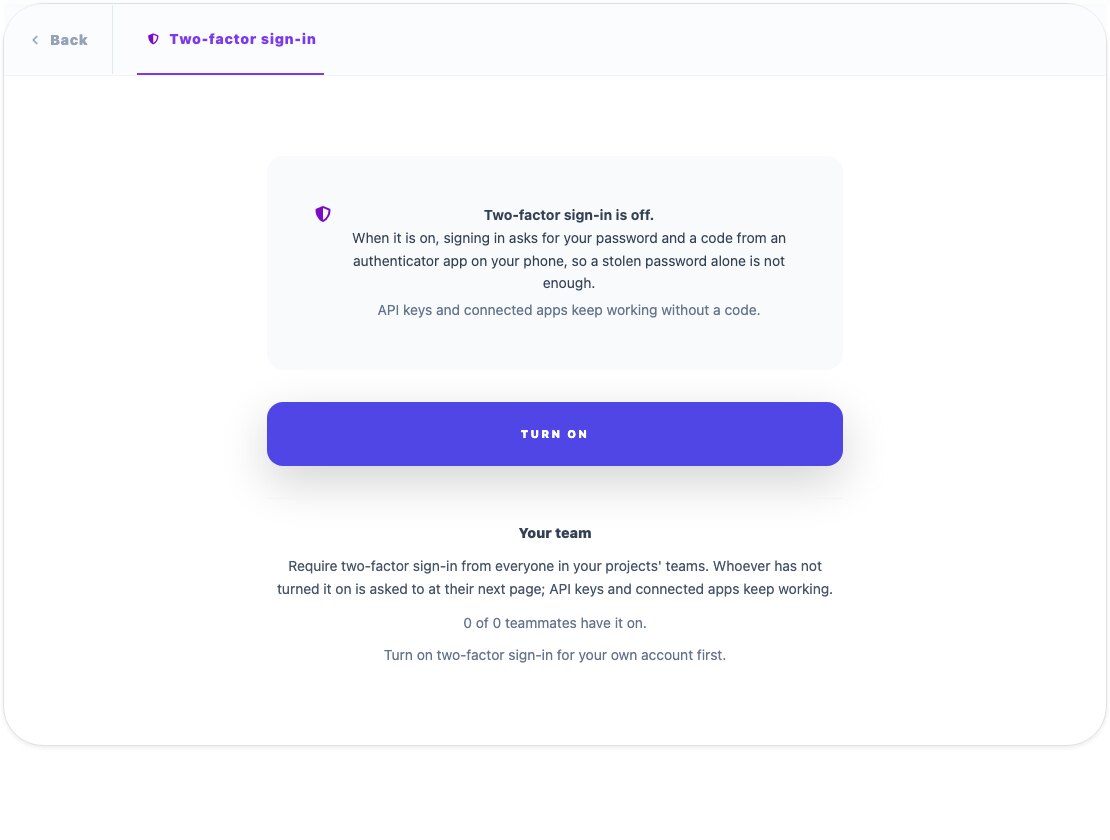
If other people work in your projects, you can require two-factor sign-in from all of them. Turn it on for yourself first, then choose «Require it from my team» on the same page. Anyone who has not set it up is asked to do it on their next page, and the page shows how many of your teammates already have it on.
The people who sign in to your portal do not need an app. In the portal's settings, open «Authentication», choose «Sign-in required» and switch on «Ask for a code sent by e-mail at sign-in». After the password, each person gets a 6-digit code by e-mail. It works for 10 minutes, and «Remember this browser» skips it for 30 days.
Before you switch it on, check two things. A person with no e-mail address in their account cannot sign in until you add one. And each code is a letter that counts toward your account's e-mails, like every other letter your portal sends.
A code from an authenticator app on your phone.
You require it; each person sets it up at their next page.
A code by e-mail, with no app to install.
Questions about it? Write to our support: we read every message.
Ihor Petrushenko, QuintaDB