
Import data from table photos, PDF invoices, Microsoft Access, Google Sheets, Airtable, or Notion—with duplicate prevention on re-import.
The hardest part of switching to a new system is migrating the data you already have. Now you don't need to format a pristine spreadsheet first: QuintaDB can extract your records straight from a photo of a paper ledger, a PDF invoice, accounting exports, or even a legacy Microsoft Access database.
When businesses switch platforms, their data is rarely clean or centralized. Some of it lives in Excel, some in physical notebooks, and some locked inside desktop software built a decade ago. Consolidating all of that by hand used to take days—and that's usually where migration projects stalled. Now, you can import your files exactly as they are.
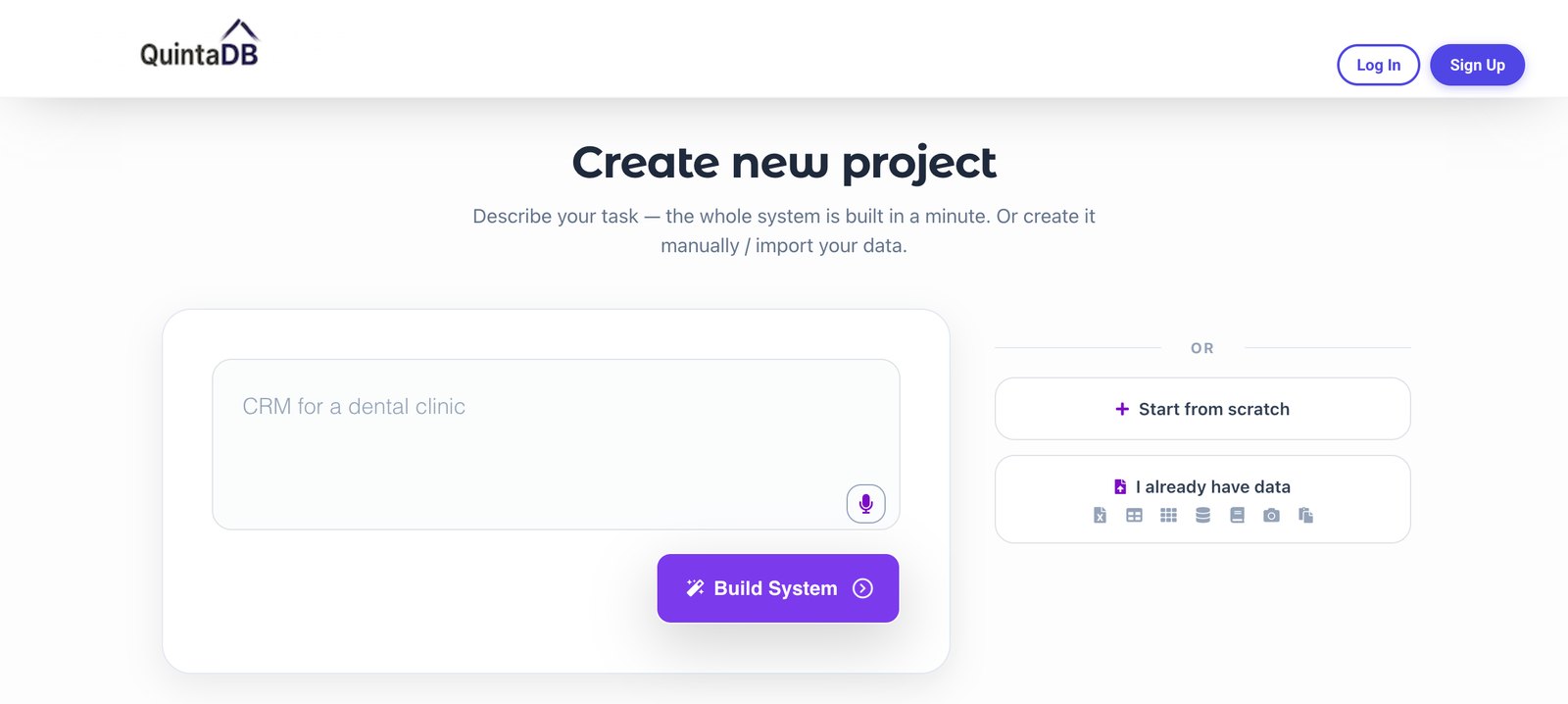
Snap a picture of a paper sheet, an order form, or your screen displaying legacy software, then upload the photo to the import screen. QuintaDB detects rows and columns automatically and lets you map every field before anything is saved. You review where everything goes and tweak anything that needs adjusting.
Processing runs in the background, so large files or multi-page documents won't freeze your browser: you can keep working while the system reads your file. Two simple factors ensure great results: make sure the entire table fits within the frame, and verify that the text is sharp and legible. Skewed or angled photos can miss edge columns.
Photos of paper forms, screenshots from external apps, or PDF bills. The system finds the table structure and maps columns for you.
Accounting exports often start with empty rows or report headers. The system skips the clutter and identifies the actual column headers.
A .mdb or .accdb file, an Airtable base link, or a Notion export archive—migrated complete with relationships and schemas.
If your operations have lived in a .mdb or .accdb file for years, you can now upload it directly. QuintaDB reads the tables inside the database file, lets you choose the ones you want, and transfers them with their schemas intact. Relational links defined in the file are preserved: linked tables remain connected so every order still maps to its customer.
This is a major upgrade for desktop database users. The data is vital, but previously it was trapped on a single computer running Access. Once imported, it lives in the cloud—complete with multi-user permissions, web forms, and client portals.
If your records are already online, there is no need to download files just to re-upload them. Paste a link to a Google Sheets spreadsheet, a file in Google Drive or Dropbox, or any public file URL—QuintaDB pulls the data directly.
You can also keep that link connected. Turn on scheduled sync to reload the file automatically. When team members update a shared spreadsheet, your database updates itself without manual re-exports. It turns a static import into a live connection.
Bring over your Airtable bases directly: provide your base link and access token, and your tables import with their structure. Relational fields are maintained as true links rather than flattened text.
For Notion, export your workspace as "Markdown & CSV" and upload the ZIP archive directly. The system unpacks all included tables at once instead of requiring file-by-file uploads. Any multi-table ZIP archive works the same way. You can also import JSON files, covering exports from third-party platforms and custom API endpoints.
Need to move just a few rows? Skip file exports entirely. Copy cells straight from any spreadsheet and paste them directly into QuintaDB. A quick update doesn't need an export workflow.
Nothing gets written to your database without your sign-off. Once a source is parsed, a mapping preview opens: your incoming columns appear on the left, and destination fields on the right. Matching headers map automatically; the rest await your direction. Map columns to existing fields, generate new fields, or skip unneeded columns entirely.
Once imported, a clear summary shows how many records were added and alerts you if any columns ended up empty. An empty column usually points to merged header cells or extra notes at the top of the file, making it quick to spot and adjust without guesswork.
Data migration is rarely a one-time event. Price lists arrive monthly, inventory reports export weekly, and team members keep editing shared sheets. That's why the importer lets you designate a unique primary key—such as an order number, SKU, or email address. You decide what happens to existing matches: update them with incoming values or leave them as they are. Records missing from the file stay untouched, keeping recurring imports clean and safe.
Data stored in static PDFs, scanned pages, or local drives can't be easily searched, shared, or automated. Bringing it into QuintaDB turns raw files into a live application with role-based access, automated workflows, custom reports, and client portals. You aren't just storing a spreadsheet copy—you're turning static data into an interactive system.
Explore all supported formats on our data import page. For a visual walk-through of Excel and CSV uploads, check out our step-by-step guide.
Data migration doesn't have to take all week. Bring your files as they are, and let QuintaDB handle the rest.
The QuintaDB Team